
Automating Your Workflow: A Deep Dive into a Make.com Scenario (Google Forms to Conditional Emails)
1. The Goal: Why This Automation Matters
The core purpose of this automation is to automatically process data from a Google Form submission, log that data, and then send a specific, targeted email based on one of the answers provided in the form.
This is much more efficient than:
Manually checking every form submission.
Copying data into a spreadsheet.
Deciding which type of response it is.
Writing and sending a corresponding email.
2. Deconstructing the Make.com Modules
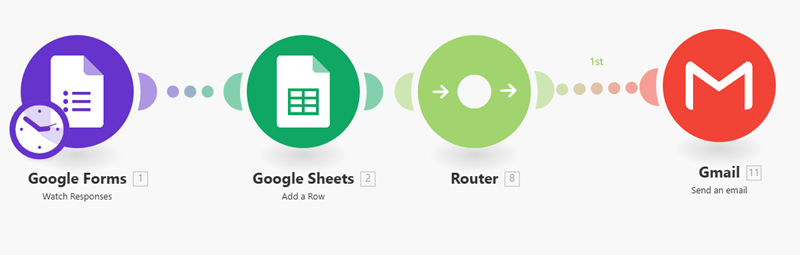
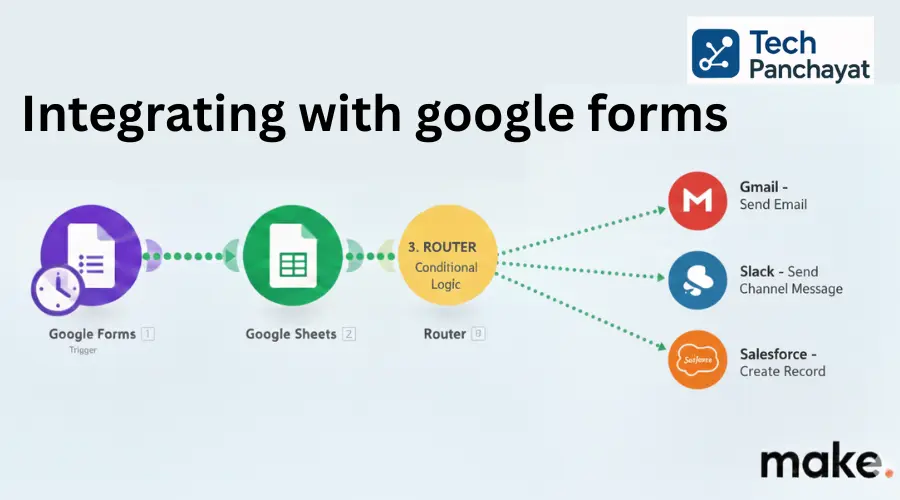
The scenario is built with four key modules, each serving a distinct function:
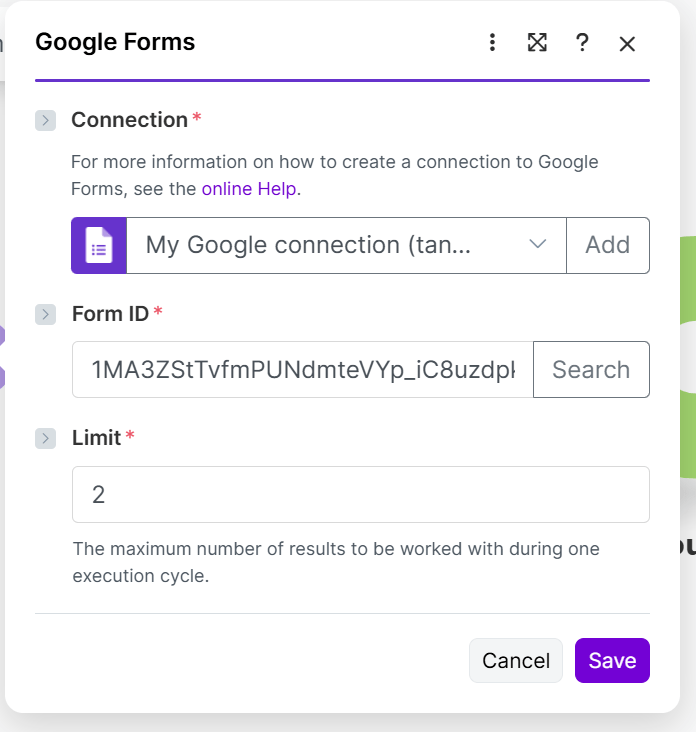
Module 1: Google Forms – Watch Responses (The Trigger)
Role: This is the trigger—the event that starts the entire automation.
Function: It is configured to watch for new responses submitted to a specified Google Form. The moment a user hits “Submit” on the form, this module is activated, pulling the response data into the Make.com flow.
Key Detail: This module typically needs to be linked to the Google Sheet where your form responses are being saved.
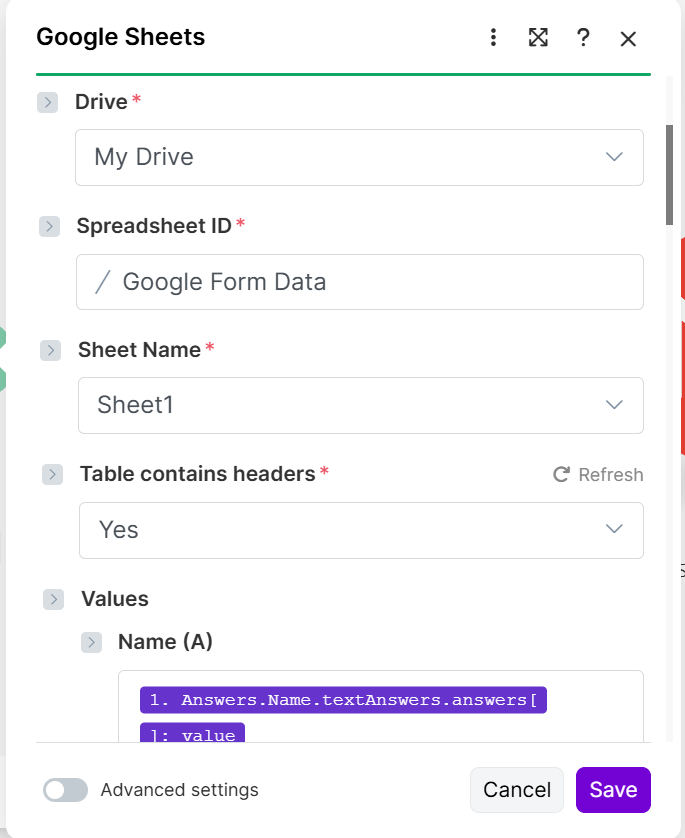
Module 2: Google Sheets – Add a Row (The Data Logger)
Role: The first action taken is to record the data.
Function: Once the form response is received, this module automatically adds a new row to a designated Google Sheet.
Benefit: This ensures you have a centralized, easy-to-read database of all submissions, even before any conditional logic is applied. It serves as your primary data backup and record.
Module 3: Router (The Decision Maker)
Role: This is the most crucial part of the workflow, enabling conditional logic.
Function: The Router takes the data coming from the Google Sheets module and directs it down one of two (or more) different paths, or routes, based on specific Filters you define.
Think of it like a traffic cop directing cars down different lanes.
How it Works: You configure a Filter on each path leading out of the Router. This filter checks a value from the Google Form data (e.g., the answer to a question like “What type of request is this?”). If the data meets the filter’s condition, it is sent down that path. If not, it moves on to check the next path.
Module 4: Gmail – Send an Email (x2) (The Action)
Role: The final, conditional action.
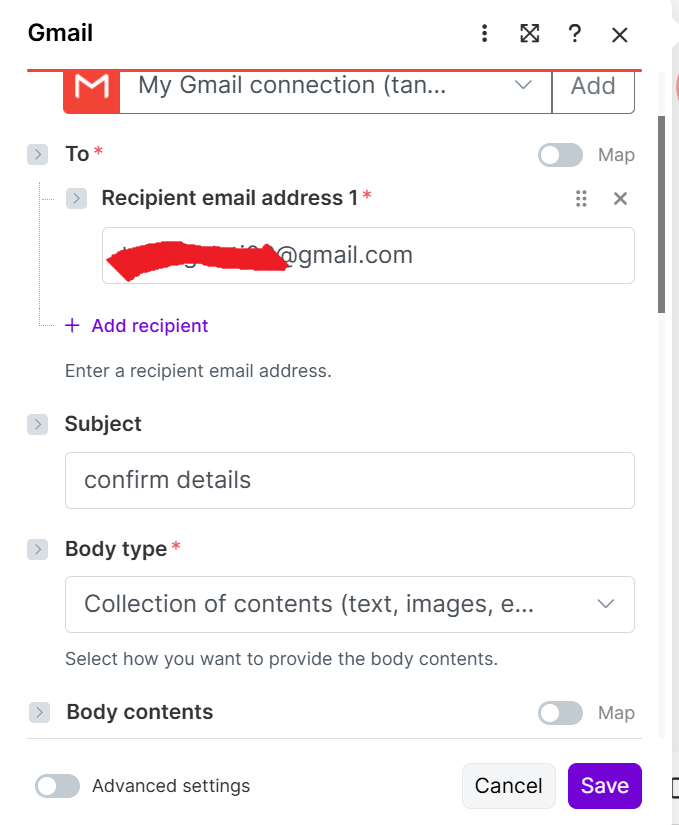
Function: These modules are responsible for sending the actual email notifications.
Route 1 (Top Path): This path likely has a filter that checks for a specific response (e.g., “Request Type is Sales”). If true, it sends a personalized email to the Sales Team.
Route 2 (Bottom Path): This path would check for a different response (e.g., “Request Type is Support”). If true, it sends a different personalized email to the Support Team.