Maintaining a clean, compliant, and professional website is essential — especially when your site allows user-generated content, comments, or imports from external sources.
Thankfully, the Search Regex plugin makes it simple to search and replace specific words or phrases across your entire WordPress site, including posts, pages, comments, users, and even metadata.
In this blog, we’ll guide you step-by-step on how to use Search Regex to find and handle any unwanted or illegal words efficiently.
What Is Search Regex?
Search Regex is a powerful WordPress plugin that extends your site’s normal search capabilities.
Instead of just searching within posts, it lets you perform advanced searches and replacements in your entire WordPress database using regular expressions (regex) — a pattern-based search language used by developers.
You can use it to:
1. Find and replace text in posts, pages, and custom fields
2. Update URLs, images, or links after migration
3. Delete spam comments or inappropriate content
4. Locate and fix incorrect metadata
5. Clean up your WordPress database
Easily find and replace unwanted or illegal words across your entire WordPress site — in just a few clicks.
Step-by-Step: How to Find Illegal or Inappropriate Words Site-Wide
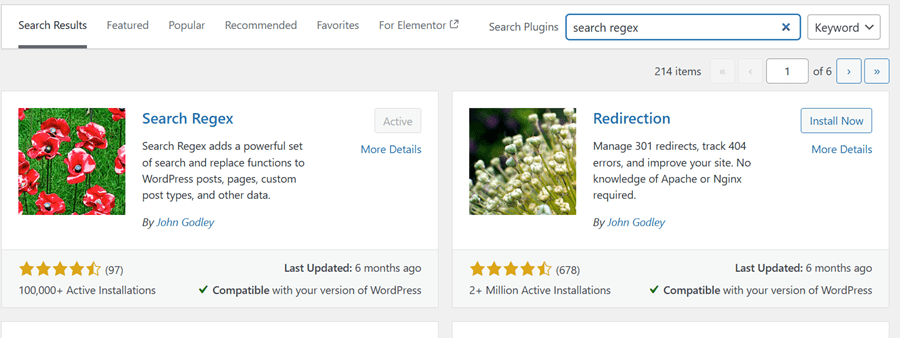
Step 1: Install the Plugin
Go to your WordPress Dashboard → Plugins → Add New
Search for “Search Regex”
Click Install Now → then Activate
You’ll now find it under Tools → Search Regex in your WordPress sidebar.
Step 2: Open the Search Regex Tool
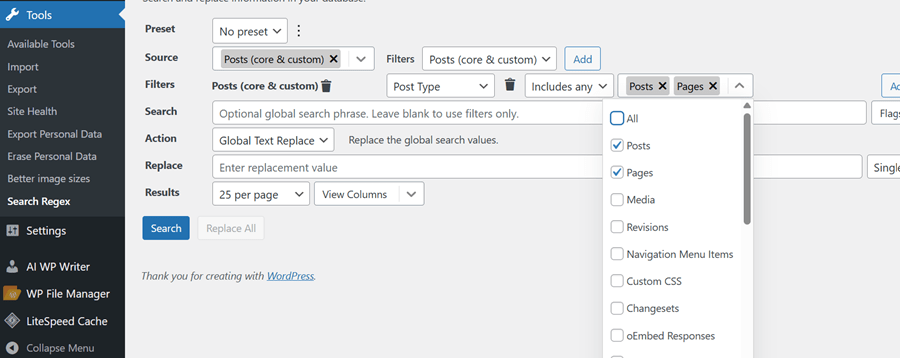
Navigate to Tools → Search Regex.
You’ll see a search box and several dropdowns for selecting where to search (posts, pages, users, comments, etc.).
Step 3: Enter Your Word or Pattern
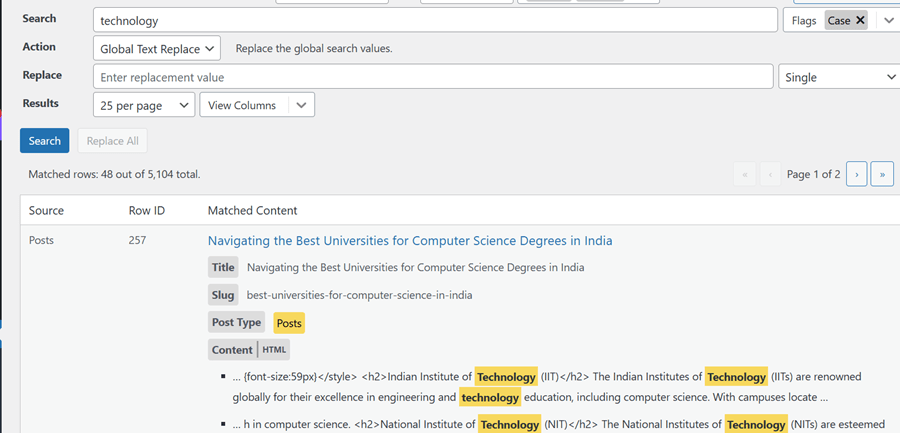
In the Search field, type the specific word or regex pattern you want to find.
Step 4: Choose Where to Search
In the Source dropdown, you can choose:
Posts
Pages
Comments
Users
Post Meta
WordPress Options
To find words hidden in image descriptions, captions, or alt text:
Select Post Meta and Attachments.
Step 5: Use Regex for Multiple Words
If you have multiple banned words, you can search for all of them at once using a single
Step 6: Review and Export Results
Once you hit Search, the plugin will display all matching results.
From there, you can:
View the post/page where the word appears
Edit manually or replace it directly
Export results to CSV for moderation or record-keeping
Step 7: Replace or Delete (Optional)
If you need to clean up, you can:
Replace illegal words with
[censored], orDelete comments or posts containing those words.
Step 8: Handle Matches Safely
If you discover actual illegal content:
Don’t delete immediately. Preserve logs and export results.
Report the issue to your hosting provider or local authorities if needed.
Remove or redact only after evidence is secured.
Re-run Search Regex to confirm cleanup.

Easily find and replace unwanted or illegal words across your entire WordPress site — in just a few clicks.
FAQs on How to Find and Remove Specific or Illegal Words Using the Search Regex Plugin in WordPress
What is the Search Regex plugin in WordPress?
The Search Regex plugin is a powerful tool that allows you to search, find, and replace text across your entire WordPress database — including posts, pages, comments, users, and meta data. It uses regular expressions (regex), making it ideal for advanced searches or bulk content cleanups.
How can I find specific or illegal words using Search Regex?
After installing the plugin, go to Tools → Search Regex in your WordPress dashboard.
In the Search field, enter the word or phrase you want to find (e.g., a banned or illegal term). Then click Search — it will list every post, comment, or field where that word appears.
Can I safely remove or replace those words site-wide?
Yes ✅ You can replace or delete any unwanted word directly from the plugin.
In the Replace field, enter a new word (or leave it blank to delete), preview the changes, and then click Replace.
Is the Search Regex plugin safe to use?
Yes, it’s safe and actively maintained by trusted developers. However, since it modifies database content directly, you should always create a full backup before running bulk actions — especially when using complex regex patterns.